
Is Character AI Down? How to Check Status and Fix Issues in 2025
It’s really frustrating when your favourite AI chat platform stops working. You’re not alone. Service problems happen a lot with popular online sites.
This guide aims to clear up any confusion. We show you how to easily check the Character AI service status. We also give you practical fixes for different problems.
First, check the official status page at status.character.ai. It gives you the latest news from the platform’s engineers.
For a detailed guide on how to check if Character AI is down, our resource is perfect. It covers simple fixes to advanced network checks.
Key Takeaways
- Always check the official Character AI status page (status.character.ai) first for real-time updates on any outages.
- Distinguish between widespread “character ai down” issues and local problems by performing self-checks and using third-party downtime detectors.
- Start troubleshooting with simple fixes like hard refreshes, clearing cache, or trying a different browser/device.
- For persistent issues, consider advanced steps such as flushing DNS, restarting networking hardware, or checking for conflicting software.
- Account-specific login errors often require password resets or direct communication with Character AI support.
Is Character AI Down? Recognising the Signs
To spot a real Character AI outage, look for consistent signs, not just one glitch. A character ai outage shows the same problems for many users. First, gather evidence before saying the service is down.
Key Indicators of an Outage
Several signs point to a big problem. If you see many issues at once, it’s likely a platform issue, not just a small problem.
- Endless Loading Screens: The site or app seems to load but never finishes. The spinning animation keeps going.
- Generic Error Messages: You keep getting pop-ups saying “Something went wrong”, “Network Error”, or “Failed to Fetch”.
- Login Failures: You can’t log in, even with the right details. The page might refresh or stall.
- Messages Not Sending: Your messages to a character don’t send. They might disappear or show “sending” forever.
- Missing Conversations: Some chats or dialogues are missing from your history list.
- Non-Functional Features: The site loads, but buttons, menus, or character interactions don’t work when clicked.
These signs, together, are clear signs of a character ai not working problem due to server issues. For more insights on how these AI conversations function, you might explore talking with your favorite fictional characters.
Performing a Preliminary Self-Check
Before checking reports, make sure it’s not your device or network. This quick three-step process helps find the problem.
- Hard Refresh Your Browser: Press Ctrl + F5 (Windows/Linux) or Cmd + Shift + R (Mac). This reloads the page, avoiding bad cached data.
- Test Your Internet Connection: Open a new tab and visit sites like YouTube or a news portal. If they don’t load, your network is the problem.
- Try an Alternative Access Point: Open Character AI in a different browser (e.g., switch from Chrome to Firefox) or in a private/incognito window. If it works there, the issue might be with your main browser’s extensions or cache.
Doing these checks gives you important information. If Character AI keeps failing, even after all your tests, a bigger outage is likely.
| Symptom | Indicates Possible Outage | Indicates Local Issue |
|---|---|---|
| Persistent “Something went wrong” error | Yes, if seen by multiple users | Maybe, if only on one device |
| Can’t load any website | No | Yes, network problem |
| Works in incognito mode | No | Yes, browser cache/extensions |
| Social media reports many users affected | Yes, strong evidence | No |
| App fails but website works | Maybe, app-specific outage | Yes, device/app issue |
This table helps quickly figure out if you’re facing a big character ai outage or a local character ai not working issue. Use it to decide your next steps.
Confirming a Widespread Character AI Down Situation
When you think there’s a problem, it’s time to check together. Use special tools and social media to see if it’s just you or everyone. Knowing if it’s a big issue or just a small problem is key.
Looking at trusted sources gives you clear answers. It tells you if the character ai server down message is just for you or everyone. This helps you save time and know what to do next.
Accessing the Official Character AI Status Portal
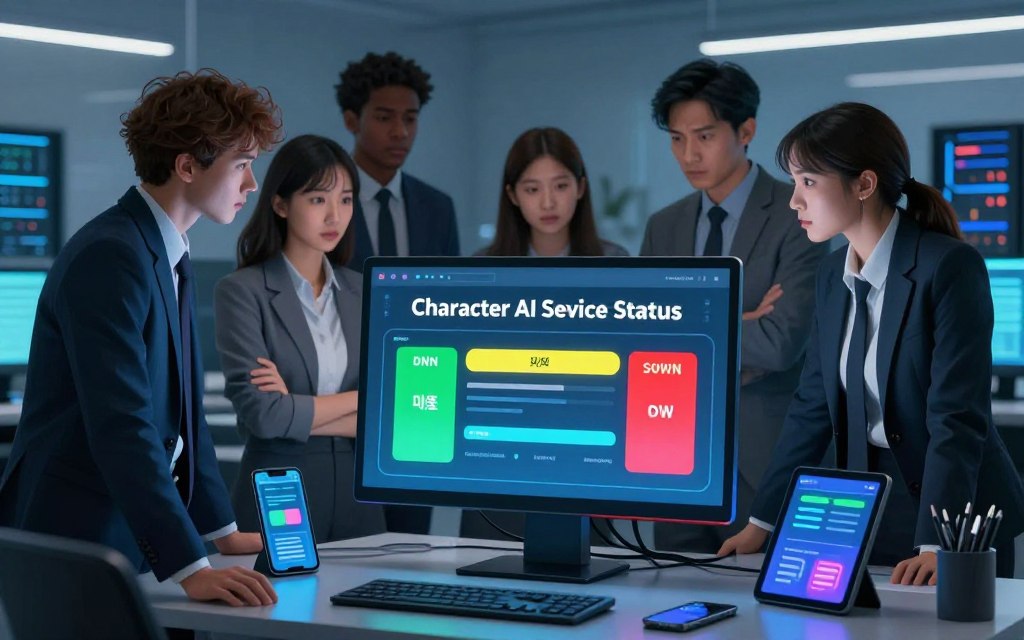
The best place to check is the official Character AI status page. You can find it at status.character.ai. This page shows if the main services are working.
Services are listed one by one, like:
- Chat and messaging functionality
- Voice feature availability
- Character creation and loading
A green light means everything is fine. Yellow means things are a bit off, and red means there’s a big problem. This page is the most reliable way to know if there’s a character ai status issue.
Checking for Announcements on Social Media
Social media is also a quick way to get updates. Companies often share news on Twitter/X before their website. The official Character AI account is @character_ai.
Keep an eye on this account for any important updates. The team posts here to talk directly to users when there’s a problem.
“We’re aware of issues affecting chat responses and are working on a fix. Thank you for your patience.”
Also, search for “Character AI down” on the platform. This shows what others are saying. If lots of people are talking about it, it’s likely a big problem, not just yours. For a broader understanding of the platform, you can check out the Character AI official website and features.
Leveraging Third-Party Downtime Detection Services
To check if a service is down, try crowd-sourced outage detection platforms. They offer quick, real-time info. While official pages are key, sites like Downdetector and IsItDownRightNow give a different view. They help you see if it’s just you or everyone else.
Using Downdetector for Real-Time Reports
Downdetector.com is top for live outage info. Search for “Character AI” to see a timeline of user reports. This timeline shows when problems started.
The outage map on Downdetector also shows where reports are coming from. A bunch of reports in one area might mean a local issue. But a lot of reports worldwide could mean a big problem.
The comments section adds more detail. People share specific errors they’ve seen, like not being able to log in.
Downdetector is great for seeing how big a problem is and how it might affect you.
Analysing Data from IsItDownRightNow
IsItDownRightNow.com gives a quick yes or no on if a service is up or down. But its real value is in its uptime charts.
These charts show how often the service has been working over the last day or month. They help you see if the current problem is a one-off or a regular issue.
Using both Downdetector and IsItDownRightNow together gives a full picture. You can compare Downdetector’s live data with IsItDownRightNow’s long-term charts. This helps you understand how serious the problem is.
Essential Troubleshooting: Initial Fixes to Attempt
Before you think it’s a big problem, try some simple fixes first. These steps can solve many issues on your device or local network. They are key to solving character ai troubleshooting problems.
Refreshing your connection or clearing old data often solves the problem. It helps find out if the issue is with your setup or the service itself.
The Power of a Hard Refresh and Cache Clearance
Your browser and the Character AI app save data to make pages load faster. But, this saved data can sometimes go wrong. This might make pages not work right or not load at all.
A hard refresh makes the browser get the latest files from the server. On a desktop, press Ctrl+F5 (Windows) or Cmd+Shift+R (Mac). If that doesn’t work, clearing the cache is the next step.
Steps for Clearing Your Browser Cache
Clearing your browser cache is a bit different for each browser, but it’s the same idea. Here’s a quick guide for the most common ones:
| Browser | Shortcut to Settings | Key Steps |
|---|---|---|
| Google Chrome | Ctrl+Shift+Delete | Select ‘All time’ for time range. Check ‘Cached images and files’. Click ‘Clear data’. |
| Mozilla Firefox | Ctrl+Shift+Delete | Choose ‘Everything’ for time range. Select ‘Cache’. Click ‘OK’. |
| Microsoft Edge | Ctrl+Shift+Delete | Set ‘Time range’ to ‘All time’. Check ‘Cached images and files’. Press ‘Clear now’. |
| Apple Safari | Develop > Empty Caches | First enable ‘Develop’ menu in Preferences. Then click ‘Develop’ and select ‘Empty Caches’. |
After clearing, close and restart your browser before trying Character AI again.
Clearing Data on the Mobile App
For app-specific problems on your phone or tablet, try clearing the app’s cache or data. This won’t delete your account.
- Android: Go to Settings > Apps > Character AI > Storage. Tap ‘Clear Cache’ first. If problems persist, tap ‘Clear Data’.
- iOS: Offloading the app is the closest equivalent. Go to Settings > General > iPhone Storage. Select Character AI and tap ‘Offload App’. Then reinstall it from the App Store.

Testing Access on an Alternative Platform
This step is key to finding the problem’s source. If Character AI works on another platform, the issue is with your original setup.
Start by trying a different web browser. If you usually use Chrome, try Firefox or Edge. Open an incognito or private browsing window. This loads pages without your cache or extensions.
Next, test on another device. Try accessing the service from your phone, tablet, or a different computer. If you were on Wi-Fi, switch to mobile data, or vice versa. This checks if your home network or ISP is causing a block.
Success on another platform means you need to fix character ai fix issues on your main device. Failure on all platforms suggests a wider service problem. For more troubleshooting tips, refer to our guide on how to check server status.
Advanced Troubleshooting for Persistent Problems
If basic fixes don’t work, the issue might be deeper. A simple router restart can sometimes fix temporary problems. If that doesn’t solve it, these advanced methods target specific character ai network problems that stop you from connecting.
Flushing DNS and Changing DNS Servers
Your computer uses a Domain Name System (DNS) to turn website names into numbers. A bad local DNS cache or slow server can cause access problems.
Flushing the cache makes your system get new, correct info. Here’s how to do it on common operating systems:
- Windows: Open Command Prompt as Administrator. Type
ipconfig /flushdnsand press Enter. - macOS: Open Terminal. Type
sudo killall -HUP mDNSResponderand enter your password when prompted.
If flushing alone doesn’t help, try a faster, more reliable public DNS service. This involves changing your network adapter’s settings.
Public DNS servers are often faster and more reliable than your internet provider’s. They can solve tricky domain resolution errors.
The table below compares two popular, free options:
| DNS Provider | Primary DNS Address | Secondary DNS Address | Key Advantage |
|---|---|---|---|
| Google Public DNS | 8.8.8.8 | 8.8.4.4 | Extremely high speed and global availability. |
| Cloudflare DNS | 1.1.1.1 | 1.0.0.1 | Focuses on privacy and is often very fast. |
| Your ISP’s Default | Automatic | Automatic | May be geographically closer but can be less reliable. |
Disabling Conflicting Software
Security and privacy tools can sometimes block access. They might see traffic to Character AI’s servers as a threat.
To test if this is the cause, temporarily disable the following software, checking your access after each step:
- VPN Services: Turn off your VPN completely. Some servers or protocols may be blocked by the AI service.
- Firewall & Antivirus Suites: Temporarily disable your system’s firewall and real-time antivirus protection. Remember to re-enable them immediately after testing.
- Browser Extensions: Ad-blockers, script blockers (like NoScript), or privacy-focused extensions. Try accessing Character AI in an incognito/private browsing window, which runs without extensions.
Always ensure you are on a trusted network when disabling security software, even briefly. This process of elimination can pinpoint the exact program causing the interference, allowing you to create a necessary exception or rule within its settings.
By methodically applying these advanced techniques, you address the root causes of complex connectivity issues. This moves beyond simple refreshes to restore your access.
Fixing Issues Specific to the Character AI Mobile App
Mobile users with Character AI problems need special steps to fix them. Issues on iOS or Android usually come from the app itself, not your internet or account. This guide will help you solve these character ai app issues on your mobile.
Ensuring Your App is Updated
Using an old app version can cause problems. Updates fix bugs, improve security, and work better with your device. They can quickly fix crashes, freezes, or login issues.
To update, go to your device’s app store. Android users use the Google Play Store. iPhone and iPad users go to the Apple App Store. Search for “Character AI” and tap “Update” if it’s available.
Turn on automatic updates in your store settings to avoid future problems. This keeps your app up to date with the latest improvements and fixes.
Performing a Clean Reinstallation
If an update doesn’t work, try a clean reinstallation. This removes the app and its bad data, starting fresh. It’s more effective than just clearing the cache.
Here’s how to do a clean reinstall:
- Long-press the Character AI app icon on your home screen. Choose to uninstall or delete it. Confirm.
- Restart your phone. This clears any app-related processes.
- Open the Google Play Store or Apple App Store. Download and install Character AI again from its official page.
- Log in with your details. Your chats and settings will stay the same because they’re on Character AI’s servers.
This method gets rid of deep problems in the app’s files. It’s a strong fix for character ai app issues that other solutions can’t solve.
Resolving Underlying Network and Connectivity Hurdles
Before blaming the service, check your own network. Many issues are local, not with the service. Fixing these can quickly fix your access and help diagnose character ai connection issues.
Restarting Your Networking Hardware
Restarting your router and modem is a classic fix. It clears glitches, resets your connection, and solves many problems.
Here’s how to restart properly:
- Unplug the power cable from your router and modem (if separate).
- Wait for at least 30 seconds to ensure all residual power drains.
- Plug the modem back in first and wait for all its lights to stabilise.
- Then, plug your router back in and allow it to boot completely.
After restarting, try accessing Character AI again. Check other websites too. If they work but Character AI doesn’t, the issue might be with the service. Check the official Character AI server status for more information. Understanding the evolution of the platform can also provide context, as seen in how the old Character AI has evolved.
Configuring Firewall and Security Exceptions
Your firewall or security software might block Character AI. Setting an exception can solve this problem.
For Windows Defender Firewall:
- Open Windows Security and go to “Firewall & network protection”.
- Click “Allow an app through firewall”.
- Click “Change settings” and then “Allow another app”.
- Browse to add your web browser (e.g., Chrome, Firefox) or add the domain “character.ai” to the allowed list.
If you use a third-party security suite, check its documentation. Add “character.ai” and any related domains for chat. Your ISP might also block sites; contacting them can help.
By fixing these local network issues, you can avoid service outages. This brings you closer to a stable connection.
Addressing Account-Specific and Login Errors
If you keep getting login failures but others can access, it’s likely your account needs a check. These character ai login errors mean you’re not seeing the same thing as everyone else. You need to focus on fixing your account, not just waiting for the service to work again.
Fixing these problems usually means looking at your login details and talking to support.
Resetting Your Password and Session
First, try the “Forgot Password” option if you can’t log in. This sends a reset link to your email. Make a new, strong password to replace any old, possibly compromised ones.
Problems logging in can also be due to bad session tokens in your browser. To fix this:
- Log out from Character AI on all devices and browsers
- Clear your browser’s cookies and site data for Character AI
- Close and restart your browser before trying to log in again
Verifying Account Status and Contacting Support
If resetting your password and session doesn’t work, check if your account is blocked. Look for emails from Character AI about any issues with your account. Sometimes, systems might block you while they check things.
If you can’t fix it yourself, it’s time to contact Character AI’s support. Make sure your support ticket has all the details:
- The exact error messages you see
- A list of what you’ve tried so far
- Your account username and device/browser
- Any screenshots that show the problem
Send this info through their contact form or social media channels. Clear, detailed reports get priority attention from support.
Most character ai login errors can be fixed by following these steps or with help from support. Keeping a record of what you’ve done and talked to support about helps solve problems faster.
Understanding the Common Causes of Character AI Outages
When Character AI stops working, knowing why can help. Outages usually come from two main reasons. One is planned updates to make the service better. The other is unexpected problems that stop it from working right.
Understanding these reasons makes downtime less mysterious. It turns a simple failure into a part of running a big, global AI system.
Planned Maintenance for Updates and Upgrades
Character ai maintenance is a key, proactive step. The team plans downtime to add important updates without affecting users. This work keeps the service safe and growing.
During maintenance, they add new features, fix security issues, and improve the database. These upgrades are essential for a stable and fast service. Users usually get a heads-up through official pages or social media. For a deeper look at new features, you might want to check out information on beta Character AI early access.
This planned character ai maintenance might be a bit of a hassle. But it’s a sign of a healthy, improving platform. It makes the service better for users when it comes back online.
Unplanned Server Issues and Traffic Surges
Character ai server issues that pop up out of nowhere are more of a problem. They can come from technical problems or too much traffic. Both can make the service slow, give errors, or stop working.
Technical failures are a big cause. These include:
- Hardware malfunctions: When physical parts or network gear fail.
- Software bugs: Unexpected errors in new code or system dependencies.
- Configuration errors: Mistakes in server settings that mess up service.
The other main cause is a sudden, huge increase in users. When lots of people try to use the service at once, it can crash. This happens when the service’s popularity grows faster than its ability to handle it.
Fixing these character ai server issues needs quick action from the team. That’s why unplanned outages can take longer to fix.
Decoding Frequent Character AI Error Messages
When Character AI has a problem, it sends out alerts. Understanding these character ai error messages is the first step to solving the issue. They help you find the problem, whether it’s on your device or the platform’s servers.
Errors can be divided into two types: connection-related and server-side. Knowing which one you have can save a lot of time. It also tells you what to do next.
Connection-Related Errors: “Network Error” & “Failed to Fetch”
Messages like “Network Error”, “Failed to Fetch”, or “Connection Timeout” usually mean there’s a problem on your end. Your device is having trouble connecting to Character AI’s servers.
This can happen for a few reasons:
- A weak or unstable internet connection.
- Issues with your web browser, such as a corrupted cache.
- Local network configuration problems, including firewall blocks.
First, try the troubleshooting steps for network and connectivity issues. A hard refresh, clearing your cache, or restarting your router can often fix these connection-related errors.
Server-Side Errors: “Something Went Wrong” & “5xx Errors”
Seeing a generic “Something Went Wrong” message or an HTTP status code starting with a 5 means the problem is with Character AI. These server-side errors show that the platform’s infrastructure is facing issues.
Common 5xx codes include:
- 502 Bad Gateway: A server got an invalid response from another server.
- 503 Service Unavailable: The server is temporarily overloaded or down for maintenance.
5xx status codes mean the server can’t fulfill your request because of its own problems.
When you face these errors, you can’t do much yourself. The best thing to do is check the official Character AI status page or use third-party outage detectors. Fixing these issues is up to the platform’s engineers, so you’ll need to be patient.
By learning to understand these character ai error messages, you can quickly figure out if the problem is with your setup or if you need to wait for a fix from the service.
Alternative AI Chat Platforms to Consider During Downtime
Don’t let a service outage stop your creative flow. Many character ai alternatives are ready to help. You can keep working on your projects or explore the AI world.
General-Purpose AI Chatbots as Substitutes
If you need a good chatbot without character role-play, many options are available. These chatbots are great for brainstorming, writing, answering questions, or chatting freely.
OpenAI’s ChatGPT is a top choice. It’s known for its smart answers and text creation on many topics. It’s versatile and knowledgeable, making it useful for many tasks.
Anthropic’s Claude is also highly regarded. It’s praised for understanding complex topics and being safe. Claude can handle big documents and detailed instructions well.
Google Gemini offers a seamless experience in the Google workspace. It’s excellent at finding information quickly and working together creatively. It has a user-friendly interface.
Other Character-Based AI Services for Exploration
If you love character-driven and role-play AI, there are special platforms for you. These services have their own communities, features, and rules. They offer new ways to interact.
When looking at these alternatives, think about their content, moderation, and customisation options. The AI world is varied, with each platform having its own unique spot. For more options, consider exploring the best AI chat character platforms for roleplaying.
| Platform Name | Key Features & Strengths | Best For Users Who… |
|---|---|---|
| Janitor AI | Focus on user-created characters with a high degree of customisation; often features a less restrictive content policy. | Prioritise creative freedom and wish to engage with a wide variety of community-generated characters. |
| Crushon.AI | Emphasises romantic and relationship-based role-play scenarios; offers both free and premium tiers for access. | Are specificially interested in NSFW or intimate storytelling and character interaction within that genre. |
| Chub AI | Centres around a decentralised, open-source philosophy; allows users to run models locally for maximum privacy. | Value data privacy above all and have the technical interest to manage local AI installations. |
Always check a service’s terms and community rules before using it. Trying out these alternatives can not only help during a Character AI outage. It might also introduce you to new features or communities that improve your experience. To learn more about creating characters, check out AI character creation and design tips.
Conclusion
Dealing with an inaccessible AI companion can really mess up your day. This guide shows you how to find and fix these problems easily.
First, look out for signs that something’s wrong. Check the official Character AI status page and sites like Downdetector to see if it’s a big issue. Then, try simple fixes like refreshing the page or checking your network settings.
Most of the time, AI services get back up and running fast. But, it’s important to be patient. Keep an eye on the official status page or social media for updates.
By following this guide, you can usually get your AI service working again quickly. This way, you can get back to chatting with your AI without too much hassle.
FAQ
How can I definitively check if Character AI is down for everyone or just me?
To see if Character AI is down for everyone, first check the official Character AI status page on Atlassian. It shows the service status in real-time. Then, look at sites like Downdetector or IsItDownRightNow for user reports.
Also, check Character AI’s social media, like their Twitter/X account, for updates from the team.
What are the first simple fixes I should try if Character AI isn’t loading?
Start with a hard refresh of your browser page. This is Ctrl+F5 on Windows or Cmd+Shift+R on Mac. Then, clear your full cache.
If that doesn’t work, try using a different browser, device, or network. This helps find if the problem is just with your setup.
I’m getting a “Network Error” or “Failed to Fetch” message. What does this mean?
These errors mean there’s a problem with your connection. Your browser or app can’t connect to Character AI’s servers. Check your internet connection and try disabling VPNs or ad-blocker extensions.
Flushing your DNS cache might also help, as explained in the advanced troubleshooting section.
What should I do if the Character AI mobile app keeps crashing or won’t open?
First, make sure you have the latest version of the app. Check this on the Google Play Store or Apple App Store.
If it keeps crashing, try uninstalling and then reinstalling the app. This clears any bad data that might be causing the problem.
Could my firewall or security software be blocking Character AI?
Yes, it could be. Firewalls, Windows Defender, or browser extensions might block Character AI. Try turning off your VPN, firewall, and extensions like uBlock Origin.
If it works, you can make a firewall exception for character.ai to let traffic through.
I see a “Something Went Wrong” or a 503 error. Is this my fault?
No, these errors are server problems. “Something Went Wrong” or HTTP status codes like 502, 503, 504 mean Character AI’s servers are the issue, not your device or connection. You can only wait for their team to fix it, which you can track on their status page or social media.
What are the most common reasons for Character AI being down?
Outages are often due to planned maintenance for updates or security patches. Or, they can be unplanned server issues like hardware failures or bugs. Planned maintenance is usually announced ahead of time, while unplanned outages are fixed as soon as possible.
Are there any good alternatives to Character AI I can use while it’s down?
Yes. For conversational AI, try OpenAI’s ChatGPT, Anthropic’s Claude, or Google Gemini. For character-based interaction, look at Janitor AI, Crushon.AI, or Chub AI. But remember, each service has its own features and policies.
How do I properly contact Character AI support for a persistent account issue?
If you’ve tried everything and have an account issue, contact Character AI’s support on their website. Give them all the details: the error messages you get, the steps you’ve taken so far, and your device and browser info.
Character AI Downtime Terminology
Hard Refresh
Reloading a web page while forcing the browser to clear its cache for that page, ensuring the latest version of the content is fetched from the server. Typically done with Ctrl+F5 (Windows/Linux) or Cmd+Shift+R (Mac).
DNS (Domain Name System)
A hierarchical and decentralized naming system for computers, services, or any resource connected to the Internet or a private network. It translates human-readable domain names into machine-readable IP addresses.
Cache
A temporary storage area where frequently accessed data is kept for faster retrieval. In browsers, it stores website data to reduce loading times on subsequent visits.
5xx Error
A class of HTTP status codes indicating that the server failed to fulfill a request. These errors (e.g., 502, 503, 504) suggest a problem with the server itself, not the client’s request.
VPN (Virtual Private Network)
A technology that creates a secure, encrypted connection over a less secure network, such as the internet. It’s used for privacy, security, and accessing geo-restricted content, but can sometimes interfere with web services.
Firewall
A network security system that monitors and controls incoming and outgoing network traffic based on predetermined security rules. It establishes a barrier between a trusted internal network and untrusted external networks, such as the Internet.

 By
By
 By
By